How to export chess games as PGN on both platforms
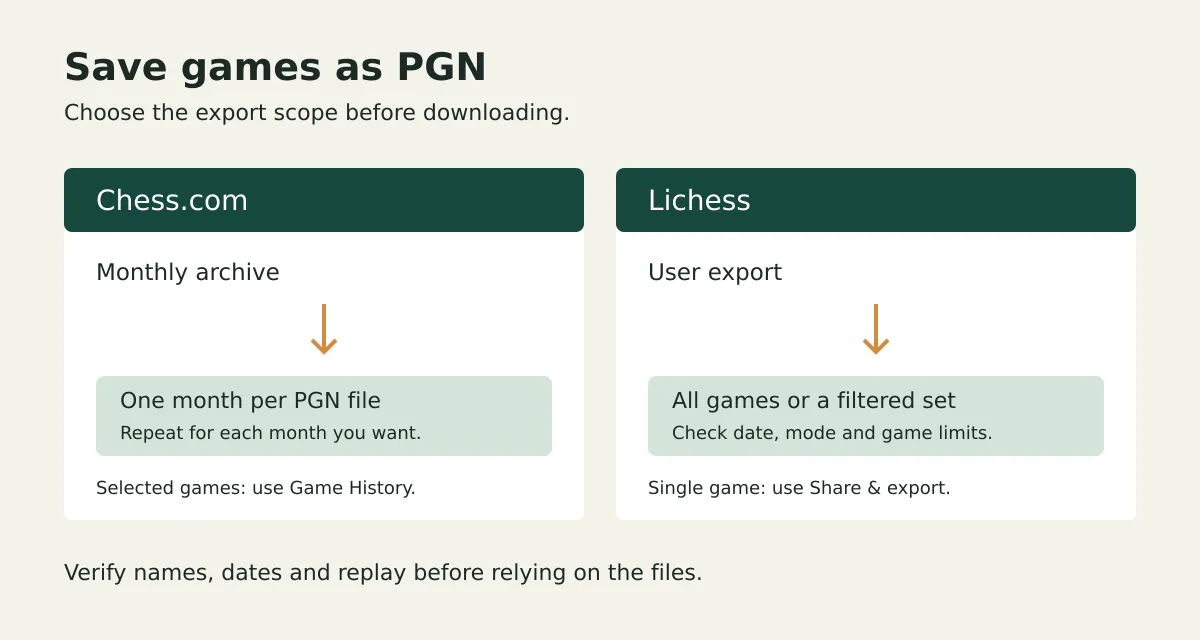
To export chess games as PGN, download selected games from Chess.com’s Game History or use its monthly archive links; on Lichess, use the profile export or user-export API. For one game, open its analysis page and use the PGN download option. Choose the date range and whether you need comments or clock data, then open the saved file to check that the games and moves are there.
What does a PGN file save?
PGN, short for Portable Game Notation, is a text format for chess games. It normally contains game details such as the players, date and result, followed by the moves. One PGN file can contain several games.
A PGN lets you replay a game in a compatible chess viewer. It isn't a backup of everything in your account: ratings charts, messages and account settings aren't part of the move record. Comments, variations and clock information depend on what the source includes and which export options you choose.
Choose your scope before downloading:
- One memorable game: export from that game’s analysis page.
- A small selection: select games in the source’s history or export filters.
- A longer collection: use monthly Chess.com files or a Lichess user export, then check coverage.
How to export chess games as PGN from Chess.com
On the Chess.com website, open Game History, tick the boxes beside the games you want and click the Download icon. The select-all control selects the games shown on the screen; don't treat it as a whole-account backup.
Chess.com’s PGN download instructions describe both selected-game downloads and monthly API exports. If you only want a few games, selecting them in the archive is the simpler route. Use the clock option if you want timestamps included.
Download one game, with or without analysis
- Open the game and its Analysis tab.
- Click Share at the bottom of the analysis panel.
- Select PGN, choose the information to include and click Download.
For an annotated copy, first prepare the analysis and choose the relevant export options. Chess.com says you can save your annotations or computer analysis, but not both in the same export. If both matter, save separate files with names that distinguish them.
On Android, the documented route is More → Export PGN from the game. On iOS, open Game Analysis with the magnifying glass, then choose Options → Share. If the phone gives you PGN text instead of a file, copy it into a plain-text document and save it with a .pgn extension.
Download a full month without selecting every row
Build Chess.com’s documented monthly export address by joining these three pieces without spaces:
- Start with
https://api.chess.com. - Add
/pub/player/USERNAME, replacingUSERNAMEwith your Chess.com username. - Add
/games/YYYY/MM/pgn, replacingYYYYwith the four-digit year andMMwith the two-digit month.
Open the completed address in your browser to download that month’s PGN. For October 2026, the final piece is /games/2026/10/pgn.
Repeat for each month you want. This route is useful for a collection spread across months because the scope is explicit; a single month’s file doesn't cover the rest of your history. Chess.com’s public API explanation also makes clear that public API data excludes private information such as game chat.
How to export PGN games from Lichess
For multiple games, open your Lichess profile and look for Export games. For one game, open its analysis board and the Share & export tab, where the PGN download choices let you choose a raw or annotated record. These routes are described in the Lichess discussion about getting a PGN.
For an explicit user export, build the API address by joining these pieces without spaces:
- Start with
https://lichess.org. - Add
/api/games/user/. - Add your Lichess username.
The Lichess user-export specification supports PGN downloads, with the newest games first by default. Omit the max parameter to request all games; a large history can take time to download.
Check the export parameters, not just the profile filters
The export request determines which games and extra details are included. Lichess documents these useful parameters:
max=100limits the export to 100 games. Remove that limit for a broader collection.perfType=rapidrestricts the export to rapid games.sinceanduntilset time boundaries using Unix timestamps in milliseconds, rather than ordinary date strings.clocks=trueincludes available clock data.evals=trueincludes available analysis evaluations and comments; it doesn't create new analysis.opening=trueincludes the opening name.
For example, append ?max=100&perfType=rapid&clocks=true to the user-export address to request up to 100 rapid games with available clocks. That is a limited sample, not a complete backup.
Moves and PGN tags are included by default in the documented export, while clocks, evaluations and opening names are optional. Don't assume that filters applied elsewhere on the site carry over to an export address; inspect the export choices themselves.
A worked example: keep six months from both sites
Say you want a local collection of your games from May through October 2026, and you use a different username on each platform.
- Create a folder called
chess-games-2026-may-oct. - Download six Chess.com monthly files, using your Chess.com username and months
05through10. Rename themchesscom-2026-05.pgnthroughchesscom-2026-10.pgnso the scope stays visible. - Export your Lichess games, using your Lichess username. Choose the intended period in the export controls, or use the API’s
sinceanduntilboundaries. If you instead download the whole history, name itlichess-full-history.pgnso it isn't mistaken for the six-month subset. - Open each file in a PGN-compatible viewer. Check a game near the start and end of the intended period, then replay a familiar game.
- Keep the original files. If your viewer can import several PGNs into one collection, add the files there without overwriting the downloads.
Write a short note alongside the files: source username, requested period, download date and any limits or filters. That makes a later refresh easier to compare with the first export.
Check these before calling it a backup
A downloaded file is only useful if it contains the record you meant to keep.
- Check the contents, not only the extension. A login page or error response saved as
.pgnwon't replay as a game. - Confirm both usernames. Your Chess.com and Lichess handles may differ.
- Check coverage. A selected page, one month or
max=100can all produce valid but incomplete files. - Test the moves. If a viewer shows only a position or headers, check that you exported the game’s PGN moves, rather than a position-only record.
- Inspect annotations. Open a game whose comments or clocks you expect to see. Don't assume the bulk export contains everything visible in the analysis screen.
- Avoid duplicate imports. Re-exporting an overlapping period can add the same games again unless the viewer handles duplicates. Keep original source links or identifiers when available, and check its import behaviour.
Before sending a PGN to someone else, review its headers and comments: the file may include player usernames and notes you didn't intend to share.
Search a downloaded collection and keep the matches
Plyfolio’s free PGN search lets you choose downloaded files or deliberately paste copied PGN, search either player or an available opening label, and replay standard-chess main lines. Try the fictional opening-search demonstration: the starting sequence 1. e4 e5 2. Nf3 finds one game even though its opening label is missing, and you can download the matching PGN records. Your supplied files and pasted text stay in the tab, with no upload or account required; clear or ordinary reload removes the collection, and starting-move matching follows the exact opening sequence rather than transpositions or later positions.
For your own collection, check the reading feedback before searching: the viewer scans up to 1,000 records, with a 2 MiB limit per file or paste, so a large export may need smaller source downloads. Open a match to verify the moves, then download the filtered records if you want a separate subset. Keep your source downloads too: the matching-record file contains only the loaded games that pass your current filters.
If you haven't found the game on its source yet, start with the old-game search checklist before exporting a large collection.